Your AI assistant
You can let your own AI assistant, such as Claude or Microsoft Copilot, work on your reviews for you. Ask it in your own words: "start a review on knee pain", "search PubMed and Scopus", "show me the PRISMA flow". It does the same things you do here, on the same reviews, and you see everything it did on the website. It can do only what you can do, and it asks you before it deletes or removes anything.
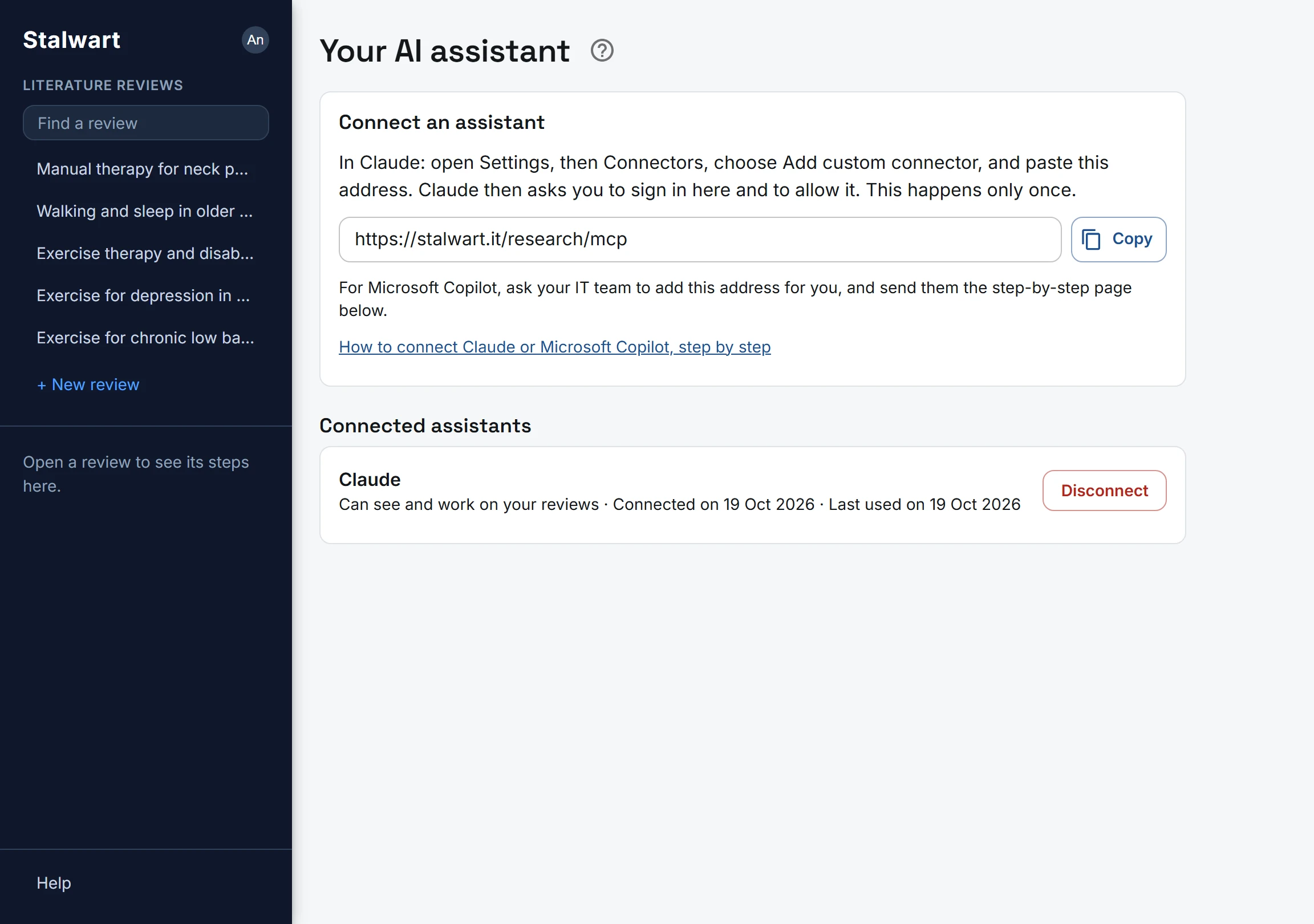
Connect your assistant
Open Your AI assistant from More in the sidebar. Press Copy beside the address shown there (it says Copied). Then:
- Claude: open Settings, then Connectors, choose Add custom connector, paste the address and press Add.
- Microsoft Copilot: ask your organisation's IT team to add the address for you, and send them this page.
Your assistant then opens a page of this website. Sign in if you are asked to. The page says which assistant is asking and what it will be able to do. It also says where your answer is sent: Claude's website, or an app on this computer. Allow only if you started connecting the assistant yourself, just now; if you did not, someone else may be asking, so press Don't allow. Press Allow to connect it, or Don't allow to say no. Either way, you go back to your assistant. Going back and forth like this is normal, and happens only once.
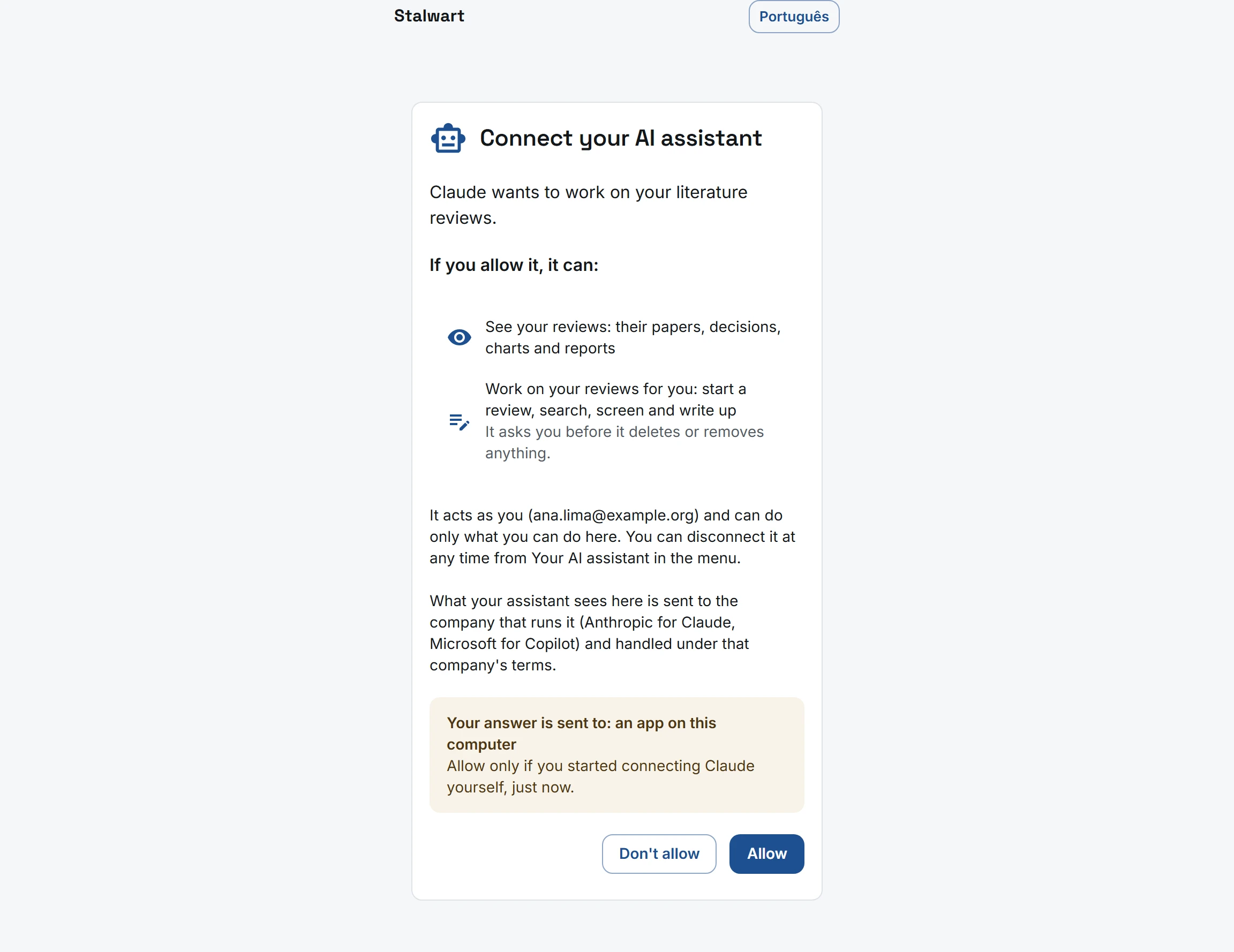
What it can do
Your assistant can see your reviews, their papers, decisions, charts and reports, and work on them for you: start a review, write the protocol, search, screen, extract data and write up. If you can only look at a review, not change it, your assistant can only look too. An assistant you allowed only to see your reviews cannot draw the citation graph, the topic tree, the word cloud or a paper's knowledge graph, because drawing them can start new work on the review (finding the topics again, reading a paper). Before it deletes or removes anything (a review, your organisation's Scopus or Web of Science key, a person from the team, papers you took out of the review yourself), it asks you to confirm.
What your assistant sees here is sent to the company that runs it (Anthropic for Claude, Microsoft for Copilot) and handled under that company's terms.
It reads this guide too, so it can lead you through a review step by step. Ask it "what can you do?" or "what do I do next?".
It can also do for you what these pages show you doing yourself:
- tell it how well you know systematic reviews, and it sets how much of the method the steps explain, as the question in A systematic review in four stages does. It can put that overview away for you, or bring it back;
- once a paper's references are in, ask it to search for the references of those references, as Search for References of References does on Start from a paper;
- when it shows you the citation graph, ask it to draw 25, 50, 75, 100 or 150 papers, as Papers shown does on The papers found. It draws 25 unless you ask.
Pictures. When you ask for a chart, such as the citation graph, a paper's knowledge graph, the PRISMA flow, the risk of bias or a forest plot, your assistant receives a picture of the chart exactly as this website draws it. The picture is still: your assistant tells you what more you can do with that chart here, such as zooming, opening a paper or downloading it, and gives you the link.
Papers from Scopus and Web of Science. Because of these databases' rules, your assistant cannot see the title, authors or abstract of a paper found there. It sees only the paper's DOI and your decisions on it. To get a file with those papers, such as an export, download it from the website: your assistant gives you the link.
Disconnect an assistant
Under Connected assistants, each assistant you connected is listed with what it can do and when it was last used. Press Disconnect and confirm: it stops working on your reviews at once. The changes it already made stay in your reviews, and you can connect it again later. To see how to connect step by step, press How to connect Claude or Microsoft Copilot, step by step.